10 tips for enhancing email accessibility for all audiences
By Ray O'Donnell
-12-02-2026-11-39-2817708963680503.png)
Not addressing email accessibility might be costing you money and potential customers.
Email accessibility doesn’t just factor in technical details. It also means your emails work for everyone, including people with visual impairments, cognitive challenges, or assistive devices.
When your emails are accessible, you open up your business to a broader audience. And build stronger trust with your customers.
That’s why it’s so important to make email accessibility a top priority.
Let’s take a closer look at 10 practical tips you can implement to improve email accessibility right away.
10 top tips to enhance email accessibility
Making emails accessible is simpler than you might think. With the right practices, tools, and mindset, you can create emails that everyone can enjoy.
Here are some specific ways to do just that:
1. Use clear and concise language
Write with simplicity in mind.
For instance, if you’re sending out a promo campaign featuring metal sheds, don’t lead with “gauge steel” or “pre-galvanized finish.” Use simpler terms like “strong steel” or “weather-resistant coating.”

Image made by the author
Long-winded sentences or complex jargon can alienate readers. Instead, use short, straightforward sentences that enhance digital communication.
For example:
- Don’t say: “We would like to take this opportunity to remind you about our new product launch”
- Say: “Don’t miss our new product launch.”
Imagine your audience skimming your email — they should grasp the main idea in seconds.
Tools like Hemingway Editor or Writer can analyze your email’s readability. Hemingway, for instance, highlights overly complex sentences and suggests simpler options. You can also use a paraphraser tool to refine your message. It’ll turn dense sentences into clear, reader-friendly language without losing your tone.
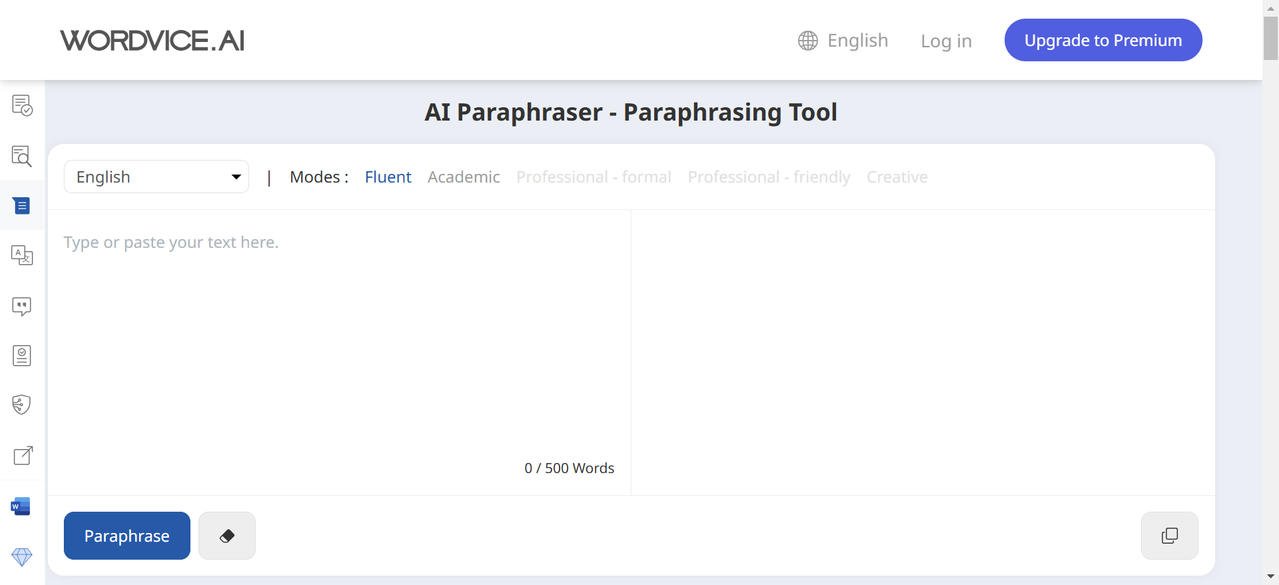
Image via Wordvice AI
2. Test your emails to see if they are accessible
To make sure your emails are truly accessible, both manual checks and automated tools can help.
Here’s how to get started:
Manual testing
- Use a screen reader: Test your email with tools like JAWS, NVDA, or VoiceOver. This helps you experience it like a user relying on assistive technology.
- Check the content structure: Read through your email and review headings, lists, and also visual elements. Make sure they’re logically organized and easy to follow.
- Inspect readability: Review your email for clear, concise language. Tools like Hemingway can help identify overly complex sentences.
- Simulate no images: View your email with images turned off to see if the alt text and text-only versions deliver the message clearly.
Automated tools
Several tools can save time and give you detailed insights into digital accessibility issues.
For instance:
- Color contrast analyzers: Tools like WebAIM’s contrast checker check if your email meets WCAG accessibility standards for text readability.
- Accessible-email.org: Scans your email for issues like missing alt text, low color contrast, and improper headings.
- Beefree: This email builder includes built-in accessibility checks for color contrast, layout, and alt text.
- Litmus: An accessibility tool that offers email previews for screen readers and tests web accessibility across devices and platforms.
3. Provide alternative text (alt text) for images
Alt text (or alt tag) helps screen reader users understand your email’s visual elements. Without it, images look like blank spaces.
Clear alt text is especially important when you consider how many people rely on assistive technology. The World Health Organization reports that globally, over two billion people live with some form of visual impairment, meaning a large portion of your audience may struggle to interpret visuals without proper descriptions.
When writing alt text, describe the image’s purpose succinctly.
For example, “Woman using a laptop.” Or “Discount banner: 20% off all products.” Avoid vague terms like “picture” or “image.” Be precise but concise. The goal is to convey the image’s intent without overwhelming details.
Remember that decorative images don’t require alt text. Instead, mark them as decorative in your email settings. (Screen readers will then skip them so users can focus on more meaningful email content.)
4. Structure your email for easy navigation
Headings and subheadings help readers and assistive devices navigate your email.
Use them to organize content and guide the flow.
Keep the layout clean with ample white space to enhance readability. (And help email recipients focus on key content.)
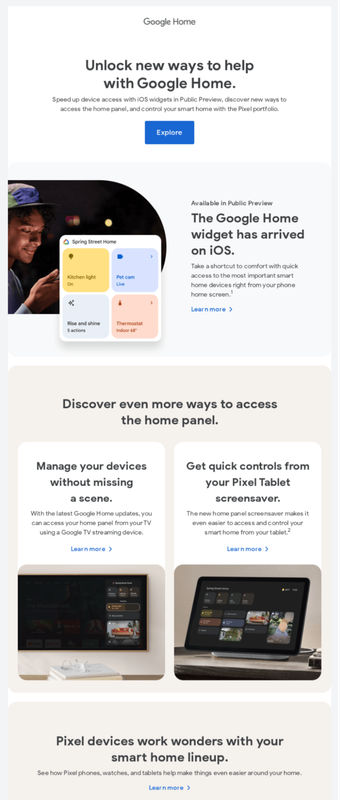
Image via Really Good Emails
For longer emails, consider adding an interactive table of contents. This lets recipients quickly jump to the sections that matter most to them!
5. Avoid excessive background images
Busy backgrounds can make text difficult to read. They also pose challenges for people with visual impairments or cognitive disabilities.
This isn’t a small issue. Low-contrast text is one of the most common accessibility problems online. WebAIM’s 2024 Analysis found that 81% of homepages had contrast ratio issues, making content harder to read for millions of users. This means they don’t meet the Web Content Accessibility Guidelines (WCAG).
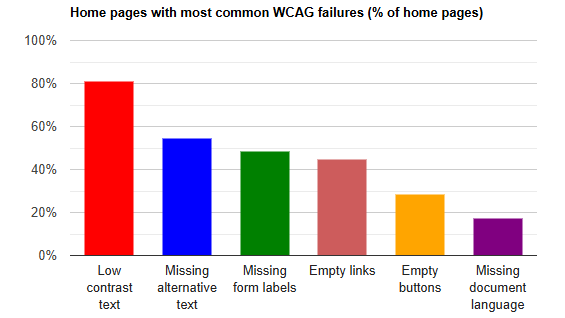
Image via WebAIM
Be sure to:
- Use a color contrast checker to verify that your text stands out clearly against the background.
- Test your email on different devices and screen sizes to confirm its readability.
- Stick to solid background colors or subtle patterns.
- Black text on a white background is always a reliable combination.
This makes your email more readable for everyone — including those with color blindness or low vision. (Note: If you must use a background image, make sure it doesn’t distract from the text.)
6. Keep links descriptive (and use the SLAM method)
Generic links like “Click here” don’t provide context for screen readers. Use meaningful link text instead. For example, instead of “Click here to learn about our online degree in social work,” try “Learn about our online degree in social work.”
Descriptive links give all readers a clear idea of what they’ll find when they click, which improves usability and trust.
Also, avoid overloading your email with too many links. Prioritize the most important ones and place them naturally within the content.
This is also an important part of the SLAM cybersecurity method (Sender, Links, Attachments, Message). When making emails accessible, think about how security and accessibility can work together.
For instance:
- Sender: Always check the sender’s name and email address. For screen reader users, make sure the sender information is clear and matches your brand so it’s easy to verify authenticity.
- Links: Use descriptive link text. This helps assistive technology users understand where the link will take them. It also makes it easier to spot suspicious links.
- Attachments: Stick to common, accessible formats like PDFs with proper tagging.
- Make sure attachments are safe from malware and easy to open for all users. (Including people with assistive devices.)
- Message: Write clearly and concisely. This minimizes confusion that scammers often exploit. And helps all users understand your intent.
7. Ensure compatibility with screen reader technology
Screen readers convert text to speech or braille. To ensure compatibility, test your email campaigns with popular screen readers such as JAWS, NVDA, or VoiceOver.
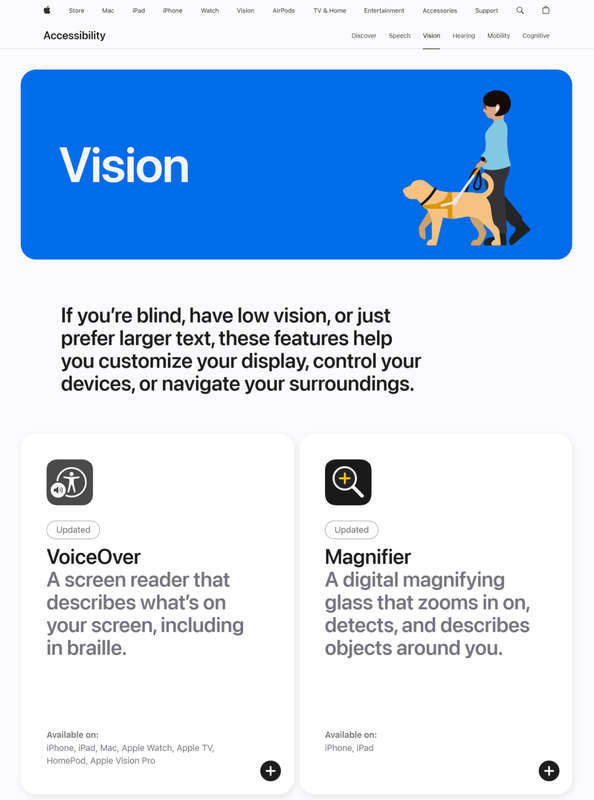
Image via Apple
Stick to simple email code and avoid excessive tables.
(Tables can confuse screen readers if not formatted correctly.) If you must use tables, make sure they have proper headers and linear layouts. Also, label your buttons, headings, and links clearly so screen readers can interpret them correctly.
Consider including skip links. These help users bypass repetitive content, like navigation menus, and jump straight to the main message.
8. Use accessible call-to-action (CTA) buttons
Buttons should have a responsive design. They should be easy to find, read, and click. Design them with sufficient contrast and size. Like in every other aspect, performing A/B testing to increase engagement is a must. For example, a bright orange button on a white background is more noticeable than a light-gray one.
Label CTA buttons clearly, such as “Shop now” or “Learn more.” Vague labels like “Submit” can confuse users. Make sure buttons are also large enough to tap easily on mobile devices.
Test your buttons across devices and screen resolutions to make sure they’re working and accessible. Tools like Stark can help you check contrast ratios and button sizes for compliance.
9. Include a text-only version
Emails with images only can exclude readers who rely on screen readers or have a slow internet connection.
Including a text-only version helps your message reach everyone.
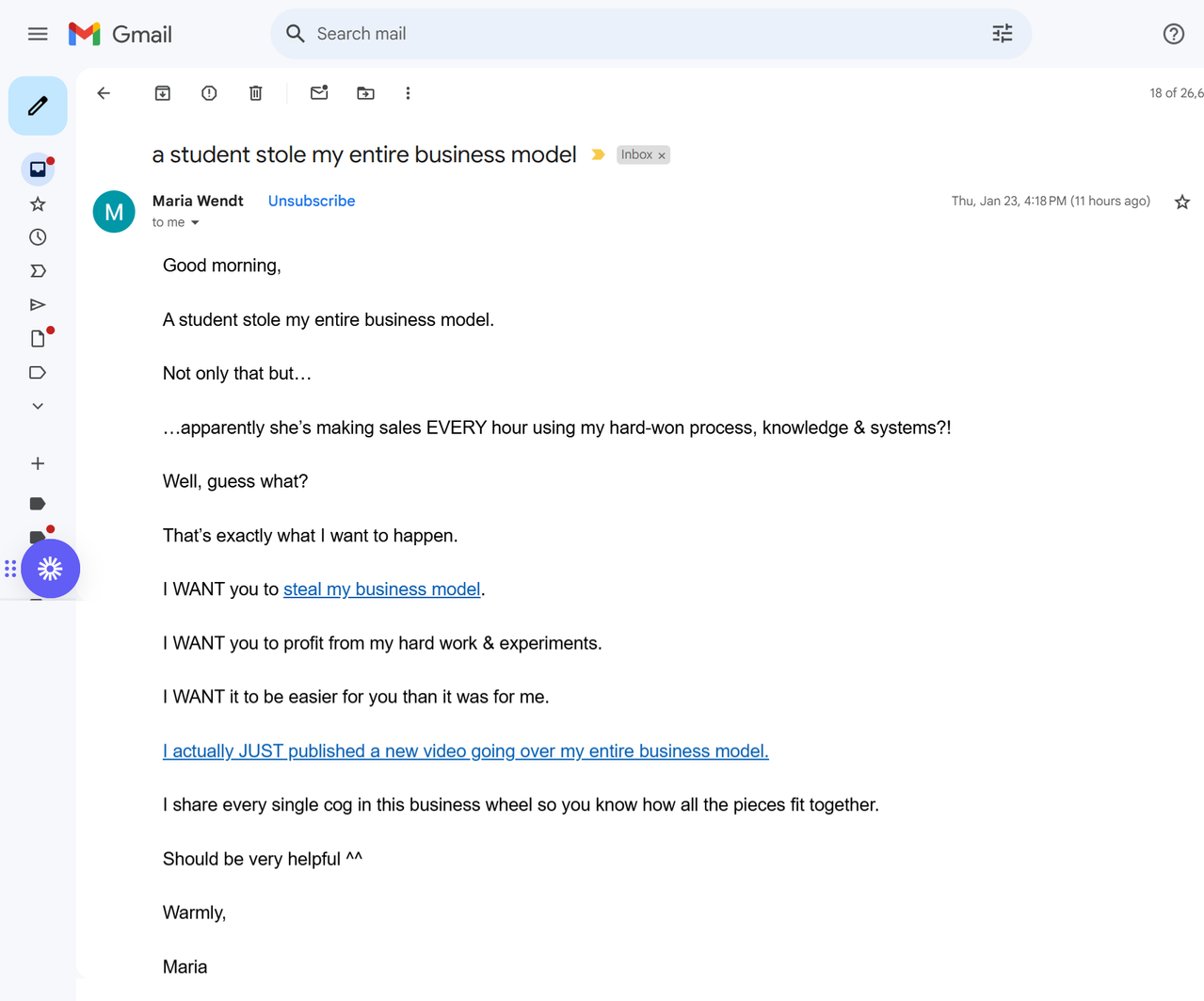
Image provided by the author
(Summarize key points in the text version, so even if images fail to load, your core message still gets through. This also improves compatibility with older email clients. And promotes faster load times for users with slower connections.)
Most email marketing platforms offer the option to add a text-only version — use this feature to provide a reliable fallback. You could also test to see if your audience prefers text-only versions overall!
Speaking of testing...
10. Regularly test your emails for accessibility
To ensure email accessibility, regular testing helps you stay compliant and effective.
Use email marketing tools like Litmus, Accessible-email.org, or WAVE to review your email designs. They can identify potential issues, such as poor color contrast, missing alt text, or non-descriptive links.
Be sure to also stay updated on accessibility standards to make sure your emails meet new best practices. (Subscribe to email newsletters. Or follow accessibility experts to keep your knowledge current.)
Incorporate user feedback as well. Real-world insights can help you refine your approach even more.
Be sure to also test any links, tools, or integrations you’re using.
For instance, if you’re using an e-Sign tool to make signing easy and accessible for new clients, make sure there are no glitches. Test sending out a few different emails with the tool to make sure it works on all screens and devices.Also, if using a third party to broadcast your emails, make sure your DMARC, DKIM and SPF settings are all in place.
Wrap up
Email accessibility lets you open the door to a wider audience and stronger customer relationships.
Accessible emails are good for business and essential for inclusivity. Start implementing these tips today to make your emails accessible to everyone.
Back to Small Business blogs